- IntroductionAn overview of the complete process and some tips for success.
In this practical exercise, you’re going to build a neural text-to-speech synthesiser using recordings of your own voice.
Before starting, be a proper engineer and
- keep a logbook to record every single step
You’ll find this invaluable if you need to repeat any steps, and your notes will also be useful for writing up a lab report at the end.
To build your synthetic voice, you will follow step-by-step instructions and use a variety of existing tools. Currently, we only support the University of Edinburgh “Eddie” compute cluster, because some steps require GPUs.
Here are the main stages in this exercise:
- Get access to the necessary computing facility and set-up your environment
- Learn how to train the model, using some pre-existing data
- Create your own data
- Select or design a recording script
- Make the recordings in the studio
- Prepare the data for training the model
- Train the model on your own data
- Evaluate the model(s) you have trained
- Write up.
Read all the way through the instructions before you start!
Related forums
-
- Forum
- Topics
- Last Post
-
-
Speech Synthesis – Assignment
Please post general or theory type questions in the public forums under the category "Speech Synthesis". The forums here are for questions specific to the practical assignment.
- -
- 6 days, 5 hours ago
-
Speech Synthesis – Assignment
- MilestonesTo keep on track, check your progress against these milestones. Try to stay ahead of them if you can.
- Friday, 16 January 2026
-
-
Speech Synthesis - milestoneFriday, 16 January 2026
Read the assignment “Introduction” and completed all tasks in “Access the compute facility” including: logging in to Eddie; setting up ssh keys; using tmux; using VS Code; copying a file to and from ECDF.
-
- Friday, 23 January 2026
-
-
Speech Synthesis - milestoneFriday, 23 January 2026
Trained a model on existing ARCTIC data. Booked (and ideally completed) your studio training session. After training, you should book your first recording session, where you will record ARCTIC A only.
-
- Friday, 30 January 2026
-
-
Speech Synthesis - milestoneFriday, 30 January 2026
Learned how to make recordings. Started your recordings of ARCTIC A. Decided whether to do automatic script selection, or a manual design.
-
- Friday, 06 February 2026
-
-
Speech Synthesis - milestoneFriday, 06 February 2026
Completed recording of ARCTIC A script.
Selected your limited domain. For automatic script selection, identified a source of text to select from.
-
- Friday, 13 February 2026
-
-
Speech Synthesis - milestoneFriday, 13 February 2026
Attempted to create a voice from your own ARCTIC A recordings.
Implemented your automatic script design algorithm, or manually created your additional script.
-
- Friday, 20 February 2026
-
-
Speech Synthesis - milestoneFriday, 20 February 2026
Completed all recordings, including your own additional material.
-
- Friday, 27 February 2026
-
-
Speech Synthesis - milestoneFriday, 27 February 2026
Listening test design started. Decided on method for implementing the test (e.g., online). Made decision about final set of voices required to test your hypotheses. Started creating those voices.
-
- Friday, 06 March 2026
-
-
Speech Synthesis - milestoneFriday, 06 March 2026
Listening test designed and implemented. Pilot listening test with one or two listeners completed.
-
- Friday, 13 March 2026
-
-
Speech Synthesis - milestoneFriday, 13 March 2026
Listening test underway. Continued experimentation to explore design choices.
-
- Friday, 20 March 2026
-
-
Speech Synthesis - milestoneFriday, 20 March 2026
Optional small follow-on listening test designed. Decided which hypotheses and experiments will feature in your lab report. Selected an evaluation method for each, which will be a listening test in some cases, but not all.
-
- Friday, 27 March 2026
-
-
Speech Synthesis - milestoneFriday, 27 March 2026
Completed draft write-up.
-
- Thursday, 09 April 2026
-
-
Speech Synthesis Milestone: Coursework Due 12 noonThursday, 09 April 2026
Submit via Learn
-
- Access the compute facilityFirst we need to check we can log in to the compute facility that we will be using: the Eddie computer at the Edinburgh Compute and Data Facility (ECDF).
IMPORTANT: you must never directly contact the University computing helpline for assistance, unless we ask you to! Everything that you need (e.g., filesystems, compute access) has already been pre-configured for you. If you need help, ask in the lab or on the forums.
What you will learn in this part:
- Working with a compute cluster:
- Logging in
- How to run a job
- Skills for working on a remote system
- Where files are stored
Logging in to Eddie in the terminal
We will be using the Edinburgh Compute and Data Facility that provides the “Eddie” compute cluster which has GPUs that we need.
Terminology:
Local computer – the computer you are sitting at, perhaps your own laptop or a PPLS lab computer
Login node – a computer that is part of Eddie, which you can log in to remotely
Compute node – a computer that is part of Eddie, which you cannot directly log in to, but can run jobs on. Some nodes contain a GPU, which is required for running the models that we will use in this exercise.
GPU – “graphics processing unit”, a specialised type of computer that performs a large number of computations at the same time (“in parallel”): well-suited to the type of computations needed for neural networks
Job – running a program on one of the compute nodes, by scheduling it
Scheduler – a program running on the cluster that decides which job to run next
Filesystem – a place to store files. There are multiple filesystems which you’ll learn about shortly.
To log in to Eddie, you need to be either on the campus network, or connected to the VPN. In a terminal on your local computer:
ssh s1234567@eddie.ecdf.ed.ac.uk
Where
s1234567is your username and the password is your EASE password. This will log you in to one of Eddie’s login nodes. Important: you must never perform any heavy computation on login nodes – they are shared between all users (and they don’t have GPUs).For convenience, you can add the following to your ssh configuration file on your local computer (usually this is
~/.ssh/config)Host eddie HostName eddie.ecdf.ed.ac.uk User s1234567
which will allow you to log in using
ssh eddie
and that will also be convenient when using VS Code.
Running your first job
Remember: do not run substantial jobs directly on a login node! There are two ways to run a job on the cluster:
- Schedule the job (add it to the queue) – this is the most common way you will use
- Request an interactive session on a compute node, then run the job directly – this is useful for development and debugging
Let’s run our first job!Create a shell script that prints “Hello world!” and save it as
hello.shin your home directory. Since this is such a simple script, it’s OK to try running it on the login node to check it works:./hello.sh
now add the job to the queue
qsub hello.sh
You will get a message like:
Your job 51978720 ("hello.sh") has been submittedNow, how do we know whether our job is running, or has finished? We can ask the scheduler:
qstat
When run with no arguments, this will list all the jobs that you currently have in the queue. If you get no output, that means nothing is in the queue – so perhaps your job already finished. Since it ran on a compute node, it will not have printed “Hello world!” to our session on the login node. Instead, all output will be placed in a pair of files, one each for stdout and stderr:
hello.sh.e51978720
hello.sh.o51978720
The names for these files are constructed from the name of the job (which defaults to the name of the program or script that you submitted),
eoro, and the job number (assigned by the scheduler). They will be saved in whichever directory you were in when you ranqsub.Take a look at their contents. Which one contains “Hello world!”? Why?
Next, start learning the useful skills in the following section. Take your time and don’t worry if at first they seem difficult or confusing.
Log in- Skills: working on a remote machineA few clever techniques will make working on a remote machine more convenient. If you find this part difficult or confusing, just take it slowly and keep practicing.
What you will learn:
- Using ssh keys to avoid being asked for your password
- Using
tmuxto keep a persistent shell running on a login node - Editing files on the remote system using VS Code
- Skills: ssh keysUse secure keys to avoid being asked for your password when you log in to a remote system.
Until now, every time you log in to Eddie, you are asked for your password. This will quickly become tedious! There is a better way to authenticate yourself: ssh keys. These instructions assume your local computer is running Linux or MacOS. If you are on Windows, look for online instructions.
On your local computer, create a new ssh key pair – when asked for the passphrase, simply hit “Enter” twice.
mkdir -p ~/.ssh
cd ~/.ssh
ssh-keygen -t rsa
 Generating public/private rsa key pair.
 Enter file in which to save the key (/Users/s1234567/.ssh/id_rsa): id_rsa_eddie
 Enter passphrase for "id_rsa_eddie" (empty for no passphrase):
Check your new key pair:
cd ~/.ssh
ls -lrt
where you should find two new files:
id_rsa_eddieandid_rsa_eddie.pub. The first one is the private key and needs to be kept secure. The second is your public key, which you can place on a remote computer. Let’s do that now!On your local computer, display the public key:
cat ~/.ssh/id_rsa_eddie.pub
Log in to an Eddie login node and copy the key there:
ssh s1234567@eddie.ecdf.ed.ac.uk
nano .ssh/authorized_keys
If the file already has some content, don’t change it. Add your public key to the end of the file, save, and exit the
nanoeditor usingctrl-x.Now we can tell
sshto stop asking for our password and instead to use the key. Modify the entry in your ssh configuration file on your local computer (usually this is~/.ssh/config)Host eddie HostName eddie.ecdf.ed.ac.uk User s1234567 IdentityFile ~/.ssh/id_rsa_eddie
Now you can log into Eddie without a password:
ssh s1234567@eddie.ecdf.ed.ac.uk
or even better, using the short
Hostname from your~/.ssh/configssh eddie
- Skills: persistent remote sessionIt is convenient to be able to keep a shell running on a login node, perhaps because you have a long-running process, or you are on an unreliable internet connection.
There are two tools which can help:
screenand the more moderntmux.Normally, when logging in to an Eddie login node, you
sshtoeddie.ecdf.ed.ac.uk. This is actually an alias, and you will be allocated to one of the actual login nodes, such aslogin01orlogin02. This isn’t a problem, until you want to reconnect to the same machine.Fortunately, the solution is simple: we will connect a specific login node using its special external name:
login01-ext.ecdf.ed.ac.ukorlogin02-ext.ecdf.ed.ac.uk. Pick one now, and stick with that for the rest of the assignment.You need to add an entry to
~/.ssh/configin order to login without a password. This will be similar to the existing entry foreddie.ecdf.ed.ac.uk, and can use the same.sshkey (you don’t need to generate a new one). Alternatively, edit your existing entry foreddie, replacingeddie.ecdf.ed.ac.ukwithlogin01-ext.ecdf.ed.ac.ukorlogin02-ext.ecdf.ed.ac.ukLet’s first learn how to use
tmuxin a terminal. Launch a terminal,sshto your chosen login node, and starttmux:ssh login01 tmux echo "Hello World"
Practice detaching by typing
ctrl-b dand reattaching by runningtmux attach. Then make sure you can do the following:- start a terminal
- ssh to a login node
- start tmux
- do something in that shell
- detach from tmux
- logout of the login node
- close the terminal
Then, some time later:
- start a terminal (could even be on a different computer)
- ssh to the same login node
- reattach to tmux
- continue whatever you were doing in step 4
If this is all new to you, it might be a little mind-bending at first, but keep practicing until it feels familiar and comfortable. Once it does, you can explore the more advances features of
tmuxby finding an online tutorial such as this one.Let’s pause for a moment to ask “Why are we doing all of this?”
The answer is: so we can work more efficiently on a remote computer.
- Skills: VS code on a remote serverYou can directly edit files on a remote system, without needing to move them to and from your local computer.
Editing files on ECDF using VS Code
When you ask VS Code to connect to a remote machine, it first uses
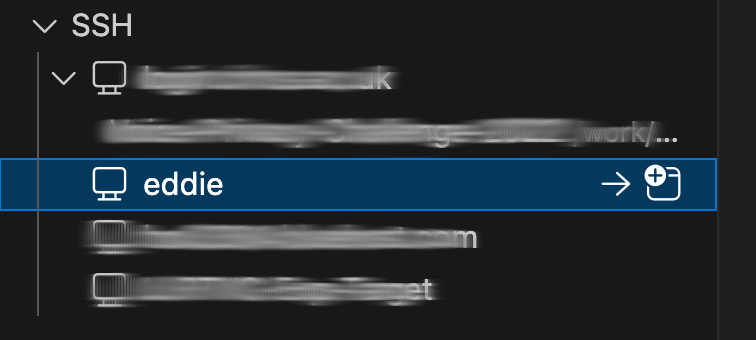
sshto log in to that machine, then downloads some software on that machine. This only works if the remote machine has access to the internet, so we’ll need to connect to a specific login node with-extin its name, just like when usingtmux.If you configured ssh something like this
Host eddie
  HostName login02-ext.ecdf.ed.ac.uk
  User s1234567
  IdentityFile ~/.ssh/id_rsa_eddie
then you can simply click

to connect to
eddie:
- Skills: filesystems on ECDFIt's important to understand the differences between the various filesystems. Each is for a specific purpose.
What you will learn:
- Why there are multiple filesystems
- What each of them should be used for
The Edinburgh Compute and Data Facility (ECDF) includes the Eddie compute cluster and several filesystems.
High-performance storage
Because Eddie has thousands of compute nodes, each of which needs to constantly access files, high-performance (i.e., very fast) storage is required. Because this is special, high-performance storage, it can only be accessed from within ECDF. Moving files to and from the high-performance filesystem requires the use of “staging”.
The high-performance filesystem provides your home directory, group space, and scratch space.
Your home directory
On ECDF, you have a relatively small quota available in your home directory,
/home/s1234567. This is only for storing configuration files (e.g., ssh keys) and should not be used for storing data or models.Group space
High-performance shared (i.e., “group”) space for the whole class is available at
/exports/chss/eddie/ppls/groups/slpgpustorage. There is a quota (i.e., maximum amount of storage available) and this is shared between everyone, so please be careful about how much space you use.In the group space you will find
tts_cwwhich is a read-only shared copy of all the code and common data (e.g., ARCTIC corpora). Do not make your own copy of this! That will simply waste expensive storage space. Always use the shared copy!You should create a personal area within the group space, with your UUN as the directory name
/exports/chss/eddie/ppls/groups/slpgpustorage/users/s1234567, which is where you should store everything that you need. Keep your space tidy, and delete things that you don’t need.The high-performance filesystem is extremely reliable. If you delete something accidentally, there is a way to recover it (ask in the lab or on the forums). But if the system has a major fault, files might be lost. Therefore, you should keep safe copies of anything that would be difficult to replace – such as your own speech recordings – somewhere else (not on ECDF).
Scratch space
You have a substantial amount of space available in
/exports/eddie/scratch/s1234567. This is called “scratch” space because it is only for short-lived files. It is free-of-charge and is ideal for use with Eddie’s compute nodes. However, the filesystem will automatically delete old files (older than 1 month), so anything that you wish to keep longer (e.g., a trained model) should be moved to group spaceGeneral storage
High-performance storage is expensive, so it is only used when necessary: for files needed by Eddie’s compute nodes. Cheaper, lower-performance storage is available for everything else. This storage is provided by DataStore and can be accessed from within ECDF at
/chss/datastore/ppls/groups/slpgpustorage. You probably do not need to use this storage area.Moving files to and from ECDF
There are several methods for moving files to or from ECDF. The procedure is called “staging”. Full details are available in the documentation but you will probably only need the following method.
From any computer on the University network (including your personal computer, if connected to the VPN), assuming that you have configured
sshso thateddierefers to a login node, you can copy a file to ECDF:rsync -av some_file.txt eddie:/exports/chss/eddie/ppls/groups/full/path/to/destination/directory/
rsynccan also be used to recursively copy an entire directory, or to copy from ECDF.
Related forums
Korin’s slides from the first lab session are available in the forums.
-
- Forum
- Topics
- Last Post
- Working with a compute cluster:
- Train the model on existing speech dataBefore recording your own speech, you will train the model on some existing data.
What you will learn in this part:
- The data required to train our speech synthesis model
- The toolkit for training, and performing inference with, our model
- Working with a compute cluster:
- debugging and testing using an interactive session
- submitting your first substantial job
- monitoring training progress
Any errors you encounter during this part will be due to human error (yours!) and not the tools or the data. You must successfully complete this part before trying it with your own data.
Do not start this part of the assignment until we tell you to!
Existing speech corpora available to you
To save disk space (which is expensive and costs real money), you must use a shared copy of the existing data. Do not make your own copy of it! Take a look at the shared copy, using an Eddie login node:
# Shared dataset directory
DATA_DIR=/exports/chss/eddie/ppls/groups/slpgpustorage/tts_cw

# Arctic dataset
# SLT speaker, American, female
ls ${DATA_DIR}/cmu_us_slt_arctic/wav
less ${DATA_DIR}/cmu_us_slt_arctic/etc/txt.done.data
# There are other speakers: replace slt with bdl, rms, or clb

# LJ Speech dataset
ls ${DATA_DIR}/LJSpeech-1.1/wavs
less ${DATA_DIR}/LJSpeech-1.1/metadata.csv
Set up your environment
Do the following once, to set up your environment:
# Shared dataset directory
DATA_DIR=/exports/chss/eddie/ppls/groups/slpgpustorage/tts_cw

# Load anaconda
module load anaconda

# Set up the environment path - You only need to run the following commands once.
conda config --add envs_dirs ${DATA_DIR}/anaconda/envs
conda config --add pkgs_dirs ${DATA_DIR}/anaconda/pkgs

# Activate the environment
conda activate py312torch27cuda118
Then, next time you login, all you need to do is:
module load anaconda && conda activate py312torch27cuda118
You should see
(py312torch27cuda118)at the start of your shell prompt, to remind you that you have activated this environment. You need to have this environment activated throughout this assignment. (If for some reason you want to deactivate it, justconda deactivate)Create a new EveryVoice project
EveryVoice is a toolkit for training a model similar to FastSpeech 2. It is freely available on GitHub and has documentation. Do not install your own copy from GitHub! Use the shared copy that is already on Eddie.
# if you didn't already do this in the current session, activate your environment:
module load anaconda && conda activate py312torch27cuda118

# Make sure you are in the right directory
EXP_DIR=/exports/chss/eddie/ppls/groups/slpgpustorage/users/s1234567/tts_cw
mkdir ${EXP_DIR}
cd ${EXP_DIR}

# Start the configuration wizard
everyvoice new-project
The wizard will guide you through the process by asking you several questions. The first time you train a model, you will use data from a single speaker (pick one from the available ARCTIC corpora) Here are the answers to some of the questions (the rest should be obvious). To abort or go back one step, press Ctrl-C.
- Where should the Configuration Wizard save your files?
- Current directory, specified using “.”
- Where is your data filelist?
- Type “/” and then use the menus to browse to: /exports/chss/eddie/ppls/groups/slpgpustorage/tts_cw/cmu_us_slt_arctic/etc/txt.done.data (or whichever ARCTIC speaker you have chosen to use)
- Select which format your filelist is in: festival
- Which representation is your text in? characters
- Which of the following text transformations would like to apply to your dataset’s characters?
- press “space” to select Lowercase and NFC Normalization
- Would you like to specify an alternative speaker ID for this dataset instead? no
- language: eng
- Keep the current g2p settings and continue
- Where are your audio files?
- Browse to: /exports/chss/eddie/ppls/groups/slpgpustorage/tts_cw/cmu_us_slt_arctic/wav/
- Which of the following audio preprocessing options would you like to apply?
- select only Normalization (-3.0dB)
- Which format would you like to output the configuration to? yaml
Using multiple datasets to create a multi-speaker (or multi-style) model
Don’t do this for your first model, but you will need this information when training a model on your own recordings.
Training a model on multiple datasets is very easy – just follow the Wizard! For example, to train a 2-speaker model on data from the ARCTIC speaker ‘slt’ and your own recordings:
- Would you like to specify an alternative speaker ID for this dataset instead? yes
- Please enter the desired speaker ID: slt
- …
- Do you have more datasets to process? yes
- …
- Please enter the desired speaker ID: Simon
- …
- Do you have more datasets to process? no
The train a multi-style model, simply treat each speaker+style combination as a unique speaker (e.g., ‘slt’, ‘Simon_reading’, ‘Simon_conversational’).
There are other ways to achieve the same result, which involve creating a filelist that has a speaker ID column. Ask for help in the lab if you want to learn how to do it that way. You will need to use this approach if you only want to use part of an existing corpus (e.g., only the ‘B’ utterances from slt ARCTIC).
Preprocess the data
# Start an interative CPU session with 4 CPU cores for 2 hours.
qlogin -pe interactivemem 4 -l h_rt=2:00:00

# In the unlikely event that you experience a long waiting time,
# trying adding -P ppls_ssgpu to use our priority job code
# (this costs money, so only use when necessary)

# Activate your environment
module load anaconda && conda activate py312torch27cuda118

# Set the paths
EXP_DIR=/exports/chss/eddie/ppls/groups/slpgpustorage/users/s1234567/tts_cw
# Put the project name you have entered in the configuration wizard here.
TTS_PROJECT=your_project_name

# Go to the project directory
cd ${EXP_DIR}/${TTS_PROJECT}

# Start the preprocessing
everyvoice preprocess config/everyvoice-text-to-spec.yaml

# This should be quite fast - under 3 minutes for 'slt'
# (Ignore any warnings about 'pkg_resources')

# IMPORTANT!
# as soon as you have finished this step, quit the interactive session
# the cluster has a limited number of interactive nodes,
# and other people might be waiting to use one

# Tip: Ctrl+D is the quickest way to log out
# Otherwise, type this:
logout
You should now be back on a login node. In a terminal, or using VS Code, browse through the contents of
${EXP_DIR}/${TTS_PROJECT}/preprocessedto see what files have been created.Train the model
Edit line 60 of
config/everyvoice-text-to-spec.yamlto specify the vocoder we will be using (note: you cannot use environment variables in this config file):vocoder_path: /exports/chss/eddie/ppls/groups/slpgpustorage/tts_cw/hifigan_universal_v1_everyvoice.ckpt
Make your own copy of the training job submission script:
DATA_DIR=/exports/chss/eddie/ppls/groups/slpgpustorage/tts_cw
EXP_DIR=/exports/chss/eddie/ppls/groups/slpgpustorage/users/s1234567/tts_cw
TTS_PROJECT=your_project_name

cd ${EXP_DIR}/${TTS_PROJECT}
cp ${DATA_DIR}/train.sh .
modify
train.shto specify- a maximum run time
- the priority job code
- a meaningful job name (of your choice)
- your University email address
#!/bin/bash

# Grid Engine options (lines prefixed with #$)
# Runtime limit of 6 hours:
#$ -l h_rt=6:00:00
#
# Set working directory to the directory where the job is submitted from:
#$ -cwd
#
# Request one GPU
# IMPORTANT: do not use more than one GPU !
#  it will burn through your available GPU hours faster
#$ -q gpu
#$ -l gpu=1
#
# Specify a priority project for shorter queue time:
#$ -P ppls_ssgpu
#
# Name your job so you can easily find it:
#$ -N my_meaningful_job_name
#
# Specify an email address to get job notifications:
#$ -M s1234567@ed.ac.uk

# Initialise the environment modules
. /etc/profile.d/modules.sh
module load anaconda
conda activate py312torch27cuda118

# Train the model
everyvoice train text-to-spec config/everyvoice-text-to-spec.yaml
Now we can submit this job to the scheduler
qsub train.sh
Use the skills you learned earlier to monitor this job. You should be able to:
- Examine the queue to see whether the job is still waiting or has started running
- Find the output files and inspect their contents
For an ARCTIC corpus comprising approx. 1100 sentences and approx. 1 hour of speech, training for 1000 epochs should take less than 3 hours.
Log in- Skills: TensorboardTensorboard allows us to monitor the training of our model.
What you will learn in this part:
- What is Tensorboard?
- How to run Tensorboard on a remote machine and connect to it from a web browser on your local machine
Tensorboard is essentially just a simple webserver that generates a little website to display log files, plot charts, and so on. The log files are being created by the process that is training your model on a GPU node. You can find them in your experiment directory.
Connecting to Tensorboard running on a remote machine
To view Tensorboard, we simply need to visit that website in a browser. There is only one complication: you need to run Tensorboard on a machine that has access to the log files (e.g., an Eddie login node) but you need to run the web browser on your local computer (e.g., your laptop).
The solution is “port forwarding”, which will create the necessary link between the two machines.
On the remote machine, check the hostname of the login node you are on:
hostname
which will return something like
login01.ecdf.ed.ac.ukwhere01might vary. Nowcdto the project directory where you are currently training a model (or training has finished and you want to inspect the logs) and start Tensorboard (assuming you have already activated thepy312torch27cuda118environment):cd ${EXP_DIR}/${TTS_PROJECT} OPENBLAS_NUM_THREADS=1 tensorboard --port 0 --logdir logs_and_checkpointsLook for a message like `TensorBoard 2.20.0 at http://localhost:12345/` where the port number
12345will vary. (Why will it vary? Because multiple users might be running Tensorboard on the same login node, and you each need a unique port number.)(If you get errors when trying to start Tensorboard, you might already have it running, so kill any existing processes with
killall tensorboardthen try again. If that doesn’t work, and you have VS Code connected to the same login node, quit VS Code too.)Using the hostname and port number from above, and taking careful note of the
-ext, do this in a terminal on your local machine:ssh -NL 6006:localhost:12345 -X s1234567@login01-ext.ecdf.ed.ac.uk
Alternatively, if you have your
sshconfigured appropriately, that would simply become:ssh -NL 6006:localhost:12345 -X eddie
This has “tunnelled” port 12345 on the remote machine to port 6006 on your local machine. Now visit http://localhost:6006/ in a web browser running on your local machine.
- Synthesise!It's time to generate synthetic speech from our trained model.
What you will learn in this part:
- Performing inference to generate synthetic speech
- How to listen to it
Inference
“Inference” is a fancy word for using our trained model to make a prediction: in this case, it predicts synthetic speech conditioned on the input text.
# Start an interactive GPU session with 1 GPU for 30 minutes
#  (jobs of less than 1 hour should get scheduled much quicker than longer jobs)
qlogin -q gpu -l gpu=1 -l h_rt=0:30:00 -P ppls_ssgpu

# You may need to wait for a compute note to be allocated by the scheduler
# If you experience a long waiting time, try again later

# Once your job is scheduled, you will obtain an interactive session on a GPU node

# On the GPU node, activate your environment
module load anaconda && conda activate py312torch27cuda118

# Set the paths
DATA_DIR=/exports/chss/eddie/ppls/groups/slpgpustorage/tts_cw
EXP_DIR=/exports/chss/eddie/ppls/groups/slpgpustorage/users/${USER}/tts_cw
TTS_PROJECT=your_project_name

# Go to the project directory
cd ${EXP_DIR}/${TTS_PROJECT}

# Perform inference for a single sentence
everyvoice synthesize from-text \
logs_and_checkpoints/FeaturePredictionExperiment/base/checkpoints/last.ckpt \
-v /exports/chss/eddie/ppls/groups/slpgpustorage/tts_cw/hifigan_universal_v1_everyvoice.ckpt \
-t "Hello World, is my first utterance." \
-a gpu -d 1 --output-type wav

# To save GPU resources, logout as soon as you are finished by type Ctrl+D, or:
logout
To perform inference for a list of sentences stored in a file called, for example
test_sentences.txt:everyvoice synthesize from-text \ logs_and_checkpoints/FeaturePredictionExperiment/base/checkpoints/last.ckpt \ -v /exports/chss/eddie/ppls/groups/slpgpustorage/tts_cw/hifigan_universal_v1_everyvoice.ckpt \ -f test_sentences.txt \ -a gpu -d 1 --output-type wav # To save GPU resources, logout as soon as you are finished by typing Ctrl+D, or: logout
Listening to the synthetic speech
VS Code is able to play audio files. Simply navigate to
${EXP_DIR}/${TTS_PROJECT}/synthesis_output. To copy the audio files to somewhere other than ECDF, you will need to use the filesystem skills you learned earlier. - Record your own speech dataThe recorded speech data comprises text-speech pairs from which we will train a model. The model will therefore be influenced by both the content (e.g., words, phonetic coverage) and speaking style.Log in
- The recording scriptYou will record two sets of speech data. The first is "neutral read-text" and the second will be of your own design.
There are two sources of speech material for training speech synthesis models:
- Purpose-made recordings using a script of our choice
- ‘Found’ data, such as audiobooks and podcasts
In both cases, the synthetic speech that the model eventually generates will be influenced by the speech used to train that model. The most obvious factors are the speaker, the content, and the speaking style.
For this exercise, we are going to train our model on a relatively small amount of speech, obtained from purpose-made recordings. We may need to combine this with some pre-existing purpose-made recordings from one or more other speakers.
We need to select a script for recording. The standard method for this was devised for the unit selection, and involves greedily selecting sentences, one by one, from a large text corpus (e.g., novels or newspapers) in order to maximise phonetic (and possibly prosodic) coverage. In the first part of this exercise, we will simply use the existing CMU ARCTIC script.
You should record only the ‘A’ set of 593 prompts, which will yield around 30 minutes of speech material.
Because recording will take time (around 5 hours in the studio per hour of speech material obtained), you should get started on recording the ARCTIC A sentences immediately.
Log in- Adding your own materialThe ARTIC script uses sentences from old novels, and was designed only for diphone coverage. You can do better!
The ARCTIC prompts come from old novels, and were selected under constraints described in the technical report. When you record the ARCTIC A sentences, you will discover that they are far from perfect.
Unit selection systems required complete diphone coverage. This is no longer the case for the neural model that we are using, so we have greater flexibility in our choice of training data.
For this exercise, we only have time to record a limited amount of speech in the studio, so we are only going to record a further approximately 30 minutes of material. By carefully designing this material, we may be able to create a better-sounding voice than the one using only ARCTIC material.
Using the skills that you will learn in class, you will choose a limited domain, find (or generate) some sentences from that domain, record these in the studio, then train a model on those recordings. You will probably need to also use your ARCTIC A recordings, and possibly some further data from another speaker.
Some ideas for choosing a domain:
- grammar- or vocabulary-constrained, such as weather reports, sports results, etc
- a speaking style, such as “calm” or “excited”
- a persona, such as “news anchor” or “DJ”
- Script designOnce you have chosen your domain, you need to select a set of sentences to record in the studio.
Note: this part of the exercise may require some basic coding skills (e.g., in Python). Students who cannot code will be given help in lab sessions to find an alternative.
You might select sentences from a (large) body of existing material, possibly using an algorithm of your own. Or you might generate the sentences algorithmically, either using your own method, or a Large Language Model. You could even combine these approaches (use an LLM to generate a large corpus, then select carefully from that).
Select enough sentences to yield around 30 minutes of speech.
Remember that you’ll need to record this material in the studio! Make sure to record under exactly the same conditions (same studio, same microphone, etc) in all of your recording sessions, so that you have the option of combining the data to train a single model.
Some ideas to get you started:
-
- Replicate the ARCTIC text selection algorithm, or try your own ideas (but keep it simple!)
- Use much more up-to-date source text, instead of old novels.
- Use a Large Language Model to generate text.
-
- Skills: recording speech in the studioWith our carefully chosen script, we now need to go into the recording studio and ask our voice talent to record it. Consistency is the key here, especially when the recording is done over multiple sessions.
Practice makes perfect, so you need to allow time for learning how to make good recordings. Using a recording studio, you will work with a partner with one of you acting as recording engineer whilst the other is the voice talent.
For 2025-26, students must use the University recording studios. Do NOT make your recordings at home.
Microphone technique
Good technique is important for high quality recordings, and always remember that consistency is crucial, so take a few photos of the setup so you can reproduce it in subsequent sessions.
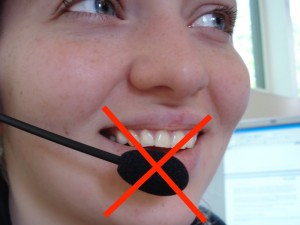
With a headset microphone, it’s important to place it to one side of the mouth to avoid breath noises
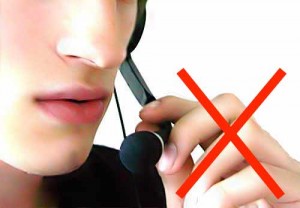
don’t place it below the mouth because you will still get breath noises from the nose
and don’t touch it whilst recording!
With a stand-mounted microphone, again you need the microphone placed to avoid breath noises from the mouth or nose, and kept at a constant distance (20-30cm). Make several test recordings to find a position that sounds good. During the recording sessions, the engineer should keep an eye on your voice talent: don’t let them move around in the chair.
Getting the recording level correct
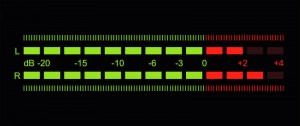
With digital recording, it’s essential that you never ‘hit the red’ when recording because you will get hard clipping and that will sound very bad (as well as potentially interfering with the signal processing we need to do later).
But on the other hand, you do want to record at the highest level possible (what a recording engineer would call ‘hot’) so that you make the most of the available bit depth. Recording at too low a level is equivalent to using fewer bits per sample, and can also make any imperfections in the audio signal chain (such as electrical noise within the microphone amplifier) more obvious.
Recording software
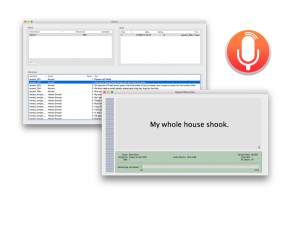
If you’re recording at home on a Mac (students taking Speech Synthesis in 2025-26 must record in a University recording studio, not at home), then you could use CSTR’s SpeechRecorder software that presents each prompt to the voice talent, and saves the recordings in individual files. Here’s the manual. To load your own sentences into this tool, they need to be in Festival’s standard ‘utts.data’ format. SpeechRecorder is already installed on the University studio computers. You do not need to install it.
For non-Mac computers, there is a Python alternative to SpeechRecorder created by previous student Tim Loderhose, and now updated and maintained by Dan Wells.
Making good, consistent recordings
You will find that you can probably record for a maximum of 2 hours at a time, with short breaks every 30 minutes or so. After that your voice will start to become creaky. Stop when this happens: you need your voice to stay consistent (it may also be damaging to your voice to speak for excessively long periods). Some recording tips:
- Switch your phone, and that of anyone else in the studio, off or place it in ‘airplane’ mode (not just silent mode) to avoid interference.
- Take a bottle of water with you and take frequent sips during recording.
- Write down (or take a photos of) the recording levels you are using and set the same levels in every session.
- Ensure chair, microphone, etc. are positioned the same way in every session (again, photos are helpful here).
- Make sure any ventilation fans are switched off during recording.
- When you are speaking, ensure that you are not fidgeting, playing with any of the cables, your hair, etc…
Of course, you should make plenty of test recordings at the outset, and listen back to them carefully over headphones to spot any problems. Once you have perfected your technique, go ahead and record the ARCTIC ‘A’ set. You should build a voice from this, to confirm that you have made sufficiently-good quality recordings, before returning to the studio to record your own material.
During the actual recording, try to get each sentence correct in a single attempt. Don’t waste time on multiple takes, except in those few cases where you made a major error. The engineer should keep notes about any sentences that need checking after the recording session.
At the end of each session, make back up a copy of your recordings on a memory stick (if using a recording studio), and/or back them up somewhere secure.
Now follow the instructions below to book the studio.
Log in- Using the University recording studiosThe University has two recording studios available for you to use.
Step 1: read this
Studios
You will use one of the two available studios and should use the same studio to make all your recordings. The microphone and other equipment may differ between them, which will make the recordings sound different. You do not want to build a voice from data with varying recording conditions.
Recording is done by pairs of students
For recording, you need to form pairs. One of you will be the Voice Talent, and the other will be the Engineer. Then you’ll swap places. If we have an odd number of students, there might be one group of 3. We formed pairs in the first class, but if you missed out then try again in the second class (tell Simon at the start of the class that you are looking for a partner).,
Choose a studio
We need to balance the usage of the two studios. To pick your studio, inspect the available training sessions here (scroll down to see both tables, one for each studio) and select the studio with the fewest people currently signed up for training.
Step 2: book a training session
Training is done in groups of 4 (two pairs). Please try to make up full groups, so prefer slots where there are already two people signed up in the sheet.
Appleton Tower (basement room B.Z.31)
- Check the available training sessions here (make sure to look at the “Appleton Tower” part of this workbook)
- Send an email to the PPLS Studio Technician ppls.studio@ed.ac.uk with subject “Speech Synthesis training session booking request (Appleton Tower)” and include both of your names. List all the sessions that your pair is available for, in order of preference. The Studio Technician will enter your pair into the sheet above, and confirm by email.
Informatics Forum sound studios (basement room B.Z16)
- Check the available training sessions here (make sure to look at the “Informatics Forum” part of this workbook)
- Send an email to the Tutor Jinzuomu Zhong <jzhong@ed.ac.uk> with subject “Speech Synthesis training session booking request (Informatics Forum)”. List all the sessions that your pair is available for, in order of preference. The Tutor will enter your pair into the sheet above, and confirm by email.
- Your studio is located in the Informatics Forum, where you must sign in at reception in order to enter this building. Then proceed down the stairs which are in the middle of the atrium. Remember to sign out when you leave.
Step 3: book recording sessions
Do not book any recording sessions until you have completed the training session!
Once you are trained, you may book a recording session in your studio. In order to maximise availability of the studios for everyone, each booked session should be a maximum of 2 hours in duration. Quickly cancel any booking that you no longer require.
Appleton Tower
- Check availability and make a booking yourself on the PPLS Appleton Tower booking system – this requires EASE authentication
- For Project title, write “Speech Synthesis recording”
- For Full description, list the people who will take part in the session
- Type: internal
- For Email Address, write the email address of the person making the booking, in s1234567@ed.ac.uk format
- Consent has been obtained: tick
- For Full Name, write the name of the person making the booking
- Each recording pair may hold a maximum of two hours (i.e., 1 x 2-hour, or 2 x 1-hour) of future bookings at any time.
Informatics Forum
- Check availability on Korin’s Informatics Sound Studio booking spreadsheet (click on the “wc” tabs at the bottom for each week starting with the given Monday date). Available slots are the empty ones. You may only use this studio between 09:00 and 17:00 on weekdays and you are only allowed to be in the building during those hours. Remember to sign in and out at reception.
- Email a booking request from your University email account to Korin.Richmond@ed.ac.uk with subject “Speech Synthesis recording session booking request (Informatics Forum)” in which you
- list all the people who will take part in the session (student number + full name)
- list possible dates/times/durations of the slot(s) you want, in order of preference
- (don’t request times that are already booked for training, which you can see in the link above, under “Step2”)
- Korin will book the first available slot(s) from your list, and confirm by email
- Each recording pair may hold a maximum of two hours (i.e., 1 x 2-hour, or 2 x 1-hour) of future bookings at any time.
- Prepare the recordingsMove your recordings into the workspace, convert the waveforms to the right format, and do some sanity checking.
Studio recordings use a high sampling rate, perhaps as high as 96 kHz, which is unnecessarily high for the purposes of this exercise. Your recordings might also be at a high bit depth of 24 bits.
Before starting any processing, keep a backup of the original recordings somewhere safe, in case you make a mistake.
Place a copy of the recordings from the studio somewhere you can listen to them conveniently (e.g., your own laptop or a PPLS lab computer) and where you have the necessary tools available (e.g., sox)
Choose amongst the multiple takes
In the studio, you probably made multiple attempts at a few of the more difficult sentences. It’s likely that the last take is the one you want (your engineer will have kept notes to help you), so you can simply delete all earlier takes of each sentence. If absolutely necessary you will need to listen to multiple takes, then select the best one. Delete all unwanted takes.
The SpeechRecorder tool adds a suffix to the file basenames to indicate the ‘take’. You need to remove this so that the basenames exactly match the utterance identifiers in utts.data. Write a shell script to remove these suffixes (noting that the suffix might vary: “_1”, “_2”, etc. depending on which take you selected for each prompt).
Check
At this stage, you should have one wav file per line in your utts.data file. Listen to all the files (Mac tip: use the Finder, navigate with the cursor keys, and use the spacebar to play each file). If you find any mismatches with the text (e.g., a substituted word), then an expedient solution is to edit the text (and not to re-record the speech – do not be a perfectionist!). Ensure that the file naming exactly matches utts.data.
In general, do not re-record any utterances. A few missing utterances is not a major problem. Don’t be a perfectionist!
Downsample
Write a little shell script that downsamples all your recordings to 22.05 kHz and (if necessary) reduces bit depth to 16 bits. Here is how to do that with sox, for a single file:
bash$ sox recordings/arctic_a0001.wav -b16 -r 22050 wav/arctic_a0001.wav
Listen to a few files after downsampling, to check everything worked correctly.
Create a dataset
All you need to do now is create a dataset from your recordings. This simply comprises all the wav files and the utts.data file – copy these to ECDF so you can train a model on them.
Log inRelated posts
Related forums
-
- Forum
- Topics
- Last Post
-
-
Signal processing
Questions about feature extraction, time and pitch modification, or anything else we can do to speech waveforms.
- 46
- 1 year, 6 months ago
-
Signal processing
-
- The recording script
- EvaluationThe main form of evaluation should be a listening test with multiple naive listeners. But there are other ways to evaluate, and potentially to improve, your voice.
Preparation
Revise the Module 5 class about evaluation to remind yourself of what was covered there.
You should already have in mind some hypotheses that you want to test, since those would have influenced the additional speech that you have recorded in the studio. Now, you need to formalise those hypotheses, then test them.
It is essential to commit to each hypothesis in writing before proceeding. Spend a little time getting the wording just right, since that will be your guide when designing an experiment that tests the hypothesis (and, for example, doesn’t accidentally test something else).
Remember that you will get a higher mark for demonstrating understanding in your report, than for simply doing more work. Likewise, there are more marks to be obtained from a good evaluation of whatever voice(s) you mange to build, than for making those voices better or training an excessive number of models.
Listening test
You should have at least one (and perhaps two, but not many more) hypotheses that need to be tested using a listening test with multiple listeners. You will be asking a group of listeners to confirm something that you already believe to be true (i.e., to confirm what you have found through your own listening). This is most likely to be that there is some perceptual difference between two experimental conditions, but could also be to confirm that there is no difference.
Don’t use an excessive number of listeners – you won’t get a higher mark for that. Something around 10 listeners should be sufficient for the purposes of this exercise, depending on how many responses you gather per listener.
Other ways to test a hypothesis
You should also have a small number of other hypotheses that do not need a formal listening test, but can be tested in some other way. For example: expert listening (you are the expert!), or an objective measure. You might use qualitative and/or quantitive evaluations here.
Don’t test an excessive number of hypotheses: you won’t be able to fit them all in your report. It’s better to keep the number smaller, so that you can test each one rigorously, and write it up well.
Implementation
Use the forum to find out more about tools for running an evaluation.
Advice
You should run all your ideas past us in a lab session, before actually executing any evaluation. We will help you sharpen your hypotheses, and check that your proposed evaluation method will actually test the hypothesis (and only the hypothesis).
Log in - Writing upBecause you kept such great notes in your logbook (didn't you?), writing up will be easy and painless.
Writing up your report is an exercise in following a specific style guide, as you would have to do for a published paper.
In this section:
Formatting
Your report must conform to the following specification:
- Use IEEE Transactions double-column style, with single line spacing
- Templates for Latex and Microsoft Word can be found the IEEE template selector here :
- To obtain a zip file of the, e.g. LaTeX, template files select: Transactions, Journals Letters > IEEE Transactions on Audio, Speech, and Language Processing > Original research and Brief > LaTeX
- If you are using LaTeX (very strongly recommended), use the
bare_jrnl.textemplate. - Follow the style as closely as you can, including the in-text citations and references.
- Replace the author name on the first page with your exam number + wordcount, and omit the author profile and photograph on the last page.
- Include the abstract and index terms.
- Your report should have the same overall format (but not necessarily the same structure) as the PDF versions of published papers: Example 1; Example 2; Example 3.
- Templates for Latex and Microsoft Word can be found the IEEE template selector here :
You should ensure that figures and graphs are large enough to read easily and are of high-quality (with a very strong preference for vector graphics, and failing that high-resolution images). It is recommended to use single-column figures as far as possible. However, a small number of large figures or table may be included at full page width, spanning both columns, if they are at the top or bottom of a page.
Length
- Word limit: 5000 words
- including: headings, footnotes, words within figures & tables; captions
- excluding: numerical data within figures and tables; references; statement on use of AI
- Page limit: no limit enforced, but typical papers will be 7 or 8 pages long
- Figures, graphs, & tables: no limit on number (but excessive or unnecessary ones may impact your mark in the “Scientific writing” category)
The word limit is a hard limit. The markers will simply not read anything beyond these limits, and your mark will only be based on what they read.
Content
Originality
The rules on originality for this assignment are strict, so that you have to explain everything your own way. That will help you learn better. The rules are stricter than for most academic journals, and that is intentional.
These rules are not designed to trick you or catch you out. They are designed to make you focus on your own understanding of the material.
All material in your submitted report (including text, figures, graphs, plots, tables, etc) must be your own original work. You must not include (even with proper attribution) any material from other sources.
These are not acceptable:
- Using a figure from another paper, or one of your own from a previous assignment
- Quotes, even if properly marked as such and with attribution
- Citing something without reading it (e.g., because you found it referenced in some other source)
- All of the unacceptable uses of generative AI for assessment listed in the university’s AI policy
- Any form of academic misconduct including, amongst other things, falsifying experimental results
whilst the following are acceptable:
- Your own explanations, in your own words, of concepts and ideas from other sources (with appropriate attribution of whose ideas those are, typically by citation)
- You are allowed, if you wish, to use AI to generate your recording script and/or test material for evaluating your system, in which case you must acknowledge this and provide details of your method, in your submitted report.
Use of AI
In addition to the above, this course requires you to comply with everything in the university’s AI policy. Your attention is drawn in particular to item 2 in the list of unacceptable uses of generative AI: “English is the language of teaching and assessment at Edinburgh – machine translation is treated as false authorship and is not acceptable.”. You are therefore very strongly advised to work in English only, from your initial notes and early drafts through to the final version for submission. This has the added benefit of being the best way to improve your English! For the same reason, you are also advised to follow the original, English language instructions for the assignment.
You probably know this by now, but it’s worth restating. Generative AI based on Large Language Models generally produces fluent, confident-sounding, and grammatically-correct writing. It can also give the illusion of ‘scholarly’ writing. However, this writing style is often verbose and over-complex. Perhaps it would score highly in an English language examination, but real scholars simply don’t write like that: we are succinct, precise, and direct.
Submitting writing produced by Generative AI isn’t just against University policy. It also means that any feedback from the marker will not be about your writing or your understanding, so it won’t help you keep learning and improving.
Statement on your use of AI
At the end of your report, you should briefly describe any use of AI tools in doing this assignment: for example, grammar checking, or using a generative AI chat app to investigate the topic. If you used tools based on Large Language Models (e.g., ChatGPT), describe the prompts that you used. If you did not use any AI in your work, you must still include this section but can simply write “none”. Text in this section does not count towards the word limit.
Scientific writing
You should take advantage of all of the following sources of help to improve your scientific writing:
1. Advice from the Speech Processing course
You should check out the writing tips provided for the Festival exercise from Speech Processing – they apply equally well here. Students who did not take Speech Processing will be offered additional help and guidance on writing the report. They can ask for this at any point during the course, but not later than 1 week before the submission date.
2. PPLS skills centre
3. Scientific writing forum
-
- Forum
- Topics
- Last Post
-
-
Scientific writing
Ask about style, formatting, grammar, formality, or any other writing topic.
- 34
- 1 week, 1 day ago
-
Scientific writing
4. Forum for this assignment (login required)
-
- Forum
- Topics
- Last Post
-
-
Speech Synthesis – Assignment
Please post general or theory type questions in the public forums under the category "Speech Synthesis". The forums here are for questions specific to the practical assignment.
- -
- 6 days, 5 hours ago
-
Speech Synthesis – Assignment
Submission and marking
Submission
- do not include your name or student number anywhere in your report
- submit a single document in PDF format via Learn; the filename must be in the format examnumber_wordcount.pdf (e.g., “B012345_4672.pdf”)
- state your word count on the first page of the report (e.g., “wordcount: 4672”)
Your work may be marked electronically or we may print hardcopies on A4 paper, so it must be legible in both formats. In particular, do not assume the markers can “zoom in” to make the figures larger.
If, after marking your report, there is reasonable uncertainty whether you hold the knowledge presented in your report – including that you did all the practical work described yourself (e.g., speech recorded, models trained, experimental results), we have the option of inviting you to an Affirmation Meeting with the Course Organiser.
Marking scheme
You must read the 2025-26 structured marking scheme because it will help you focus your effort and decide how much to write in each section of your report.
Then design a structure for your report that is consistent with the marking scheme, but do not simply copy the marking scheme sections as your headings because that is not the best structure.
A well-structured report will be awarded marks under “Scientific writing”. Making the relationship between your report structure and the marking scheme clear will help the marker find all the places they can give you marks.
- Use IEEE Transactions double-column style, with single line spacing
Build your own neural speech synthesiser
This exercise is the replacement for building your own unit selection voice. You will use your data to train a neural sequence-to-sequence model, similar to FastSpeech 2.
Log in










 This is the new version. Still under construction.